
Is saree look trending everywhere on Instagram? A few days ago my girlfriend made the exact same demand. She said, “Can you edit a saree picture for me?”
Then it came to my mind, you are also probably looking for a gemini ai photo prompt copy paste saree look right at this moment, which can create a great saree look matching your face in no time.
No worry, I myself fell into a lot of trouble with this the first time. But now the whole process has become very easy. Come, let us see step by step how very easily you can also do this work.
I am a boy, even though I did some small work on photo editing I had no idea about girls saree designs. But to fulfill her wish I started the work. In the beginning I fell into a lot of trouble. The picture was getting edited, but the face was not looking like her. She saw it and said, “This is not me.”
Later I understood a small thing. After correcting that mistake such a picture was made, she was shocked to see it.
Is this happening to you too? Are you also looking for a perfect saree ai prompt for yourself?
No worry, today I am explaining the whole method in very simple language. Even if it is the first time you can very easily create a beautiful saree look for yourself.
What is Gemini AI Saree Photo Prompt?
Usually modern girls feel more comfortable wearing churidar, jeans or western clothes. But on festivals or special days the value of saree is still the highest.
Now if you open social media you will see many girls wearing different styles of saree and uploading great pictures. Most of these pictures are not real, they are made with AI.
And the instruction or writing that is used to make these pictures, that is called a prompt.
In simple words, you will write to Google Gemini what kind of saree you want, which color you want and how the background will be. Gemini will read that writing and make a beautiful saree picture matching your face.
How to Create a Saree Look Photo Using Gemini AI (Step by Step)
Now let us come to the main point. Those who have never done photo editing before, they can also do the work very easily by following these steps.
Come let us see step by step:
- Install app or open website: First download the Google Gemini app on your phone. If you want you can also go directly to the Gemini website from Chrome browser.
- Sign in: Login or sign in to Gemini with your Gmail ID.
- Upload photo: Right beside the chat box you will see a plus icon. Click there and upload a clear picture of yours from the gallery.
- Copy paste prompt: Below this article I have given many nice prompts. Copy the one you like. Then go to the chat box of Gemini and paste it.
- Send message: If everything is okay click on the send button.
Done. Wait for a few seconds. Gemini will make your picture. If you do not like the color or design of the saree, then you can customize it again by writing your favorite color inside that prompt.
100+ Best Gemini AI Saree Look Prompts (Copy & Paste)
Here I kept some of the best prompts for you. The one you like, just copy and use it.
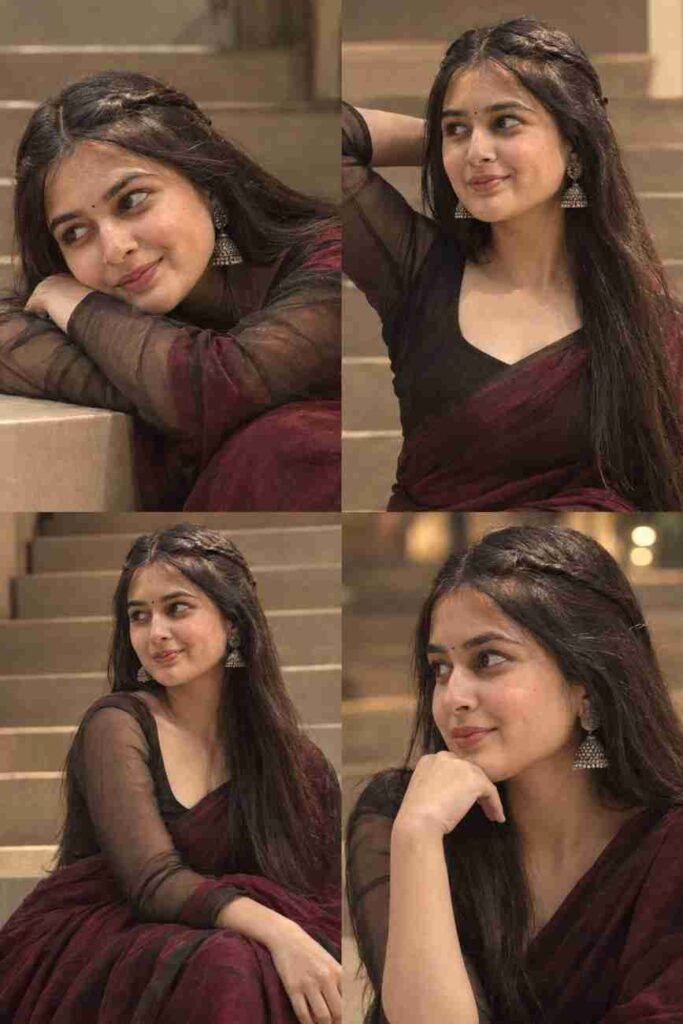
Use the uploaded image as the only identity reference. Preserve her face and identity exactly. Create four intimate cinematic portraits of the same woman seated on neutral tiled stairs, wearing a deep burgundy-black saree with a sheer black blouse, long side-parted hair, natural glam makeup, small black bindi, and oxidized silver jhumkas. Include varied elegant poses: head resting on arms, arm behind head, three-quarter seated gaze, and contemplative side look. Soft warm indoor light, shallow depth of field, creamy bokeh, rich contrast, subtle film grain, realistic skin and fabric texture, moody luxury aesthetic.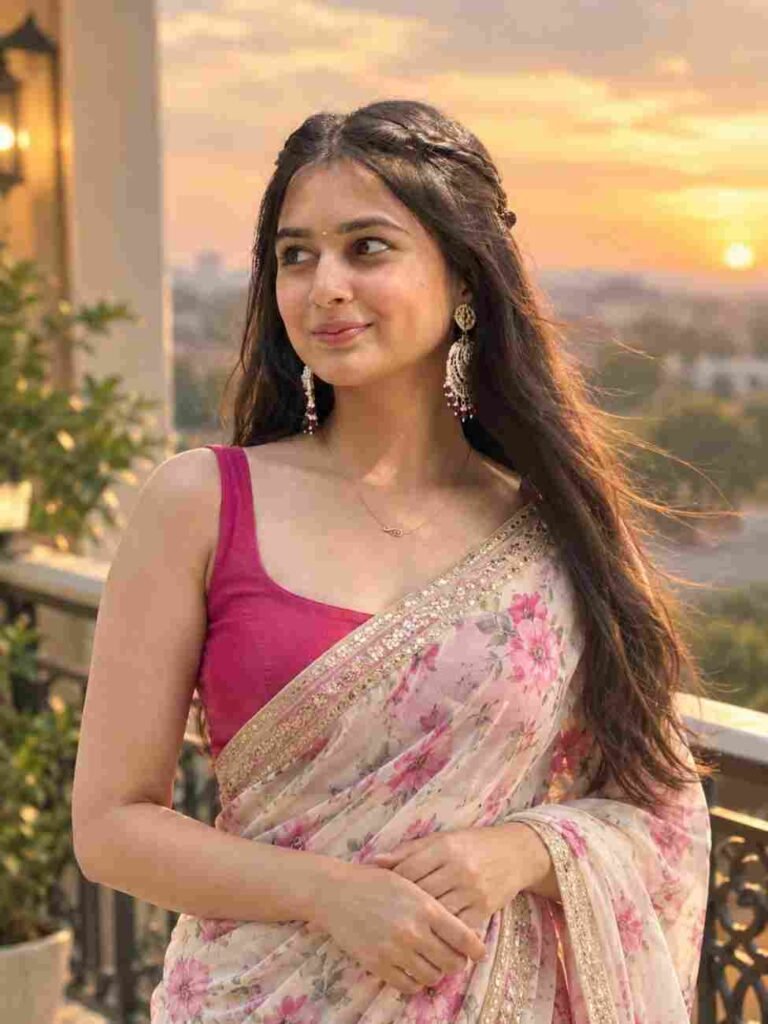
Use the uploaded image as the only identity reference. Preserve her face and identity exactly. Create an ultra-realistic 8K cinematic portrait of the same Indian woman standing gracefully on a luxurious balcony at sunset, wearing an elegant floral saree, with softly styled flowing hair moving in the evening breeze. Warm golden-hour lighting, natural skin texture, blurred cityscape, soft bokeh, elegant pose, DSLR photography, vertical 3:4.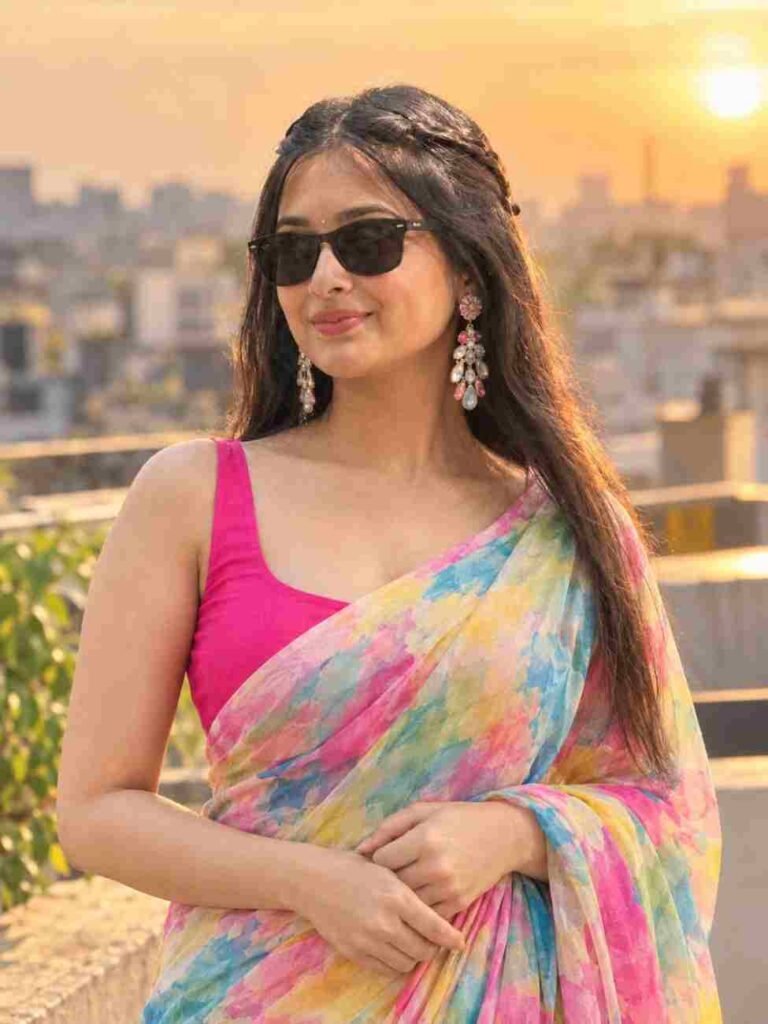
Hyper-realistic South Asian woman on a rooftop at golden hour, wearing a pastel multicolor watercolor saree with pink, blue, yellow and green tones, bright pink sleeveless blouse, dark sunglasses and elegant statement earrings. Gentle smile, natural pose, soft sunset glow, blurred cityscape and warm bokeh background, DSLR photography, realistic skin texture, cinematic lighting, 4K, vertical 3:4.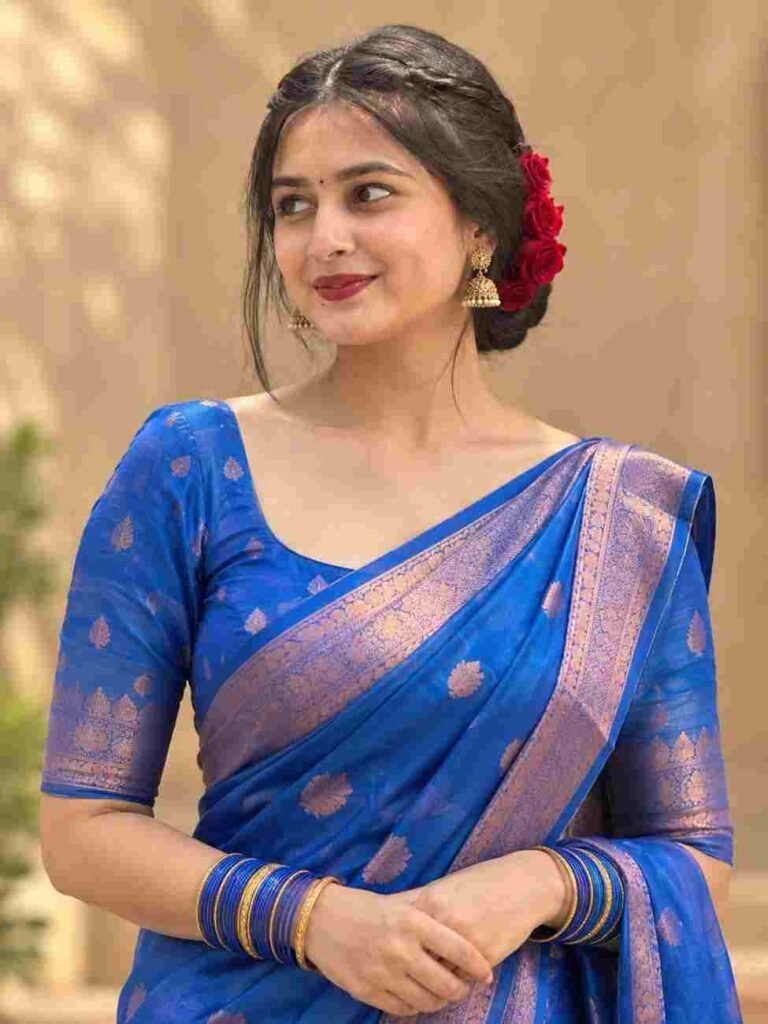
Photorealistic Indian woman in a bright blue silk saree with subtle pink-gold patterns, blue-gold bangles, dark red lipstick, small bindi, gold jhumkas, neat bun adorned with red roses, hands gently clasped, warm blurred background, soft natural light, elegant DSLR portrait, 3:4 ratio.
Ultra-realistic Indian woman in a mustard-yellow black-striped saree, dark green embroidered blouse, black ponytail, sunglasses, floral gold choker, small bindi, holding a smartphone, elegant pose, lush green bokeh background, natural skin texture, DSLR photography, soft light, 4K, vertical 9:16.Why Does Gemini Change Your Face or Skin Tone? (And How to Fix It)
While making girlfriend’s picture I fell into this exact problem. The picture was becoming beautiful, but her skin tone was changing completely.
Its main reason is, your picture. If Gemini cannot understand your face or the lighting of the picture properly, then it puts a face on its own.
The way to fix this is very easy. You have to upload a clear picture.
I noticed a trick. Instead of giving a picture from the gallery, click on the plus option of the Gemini app and open the camera directly. Then take a fresh selfie and upload it. In this, Gemini can understand the details of your face very well and the result comes best.
What Kind of Photo Should You Upload for the Best Result?
Here you do not need to listen to anyone’s words. I myself tested by giving many pictures.
To get the best result, give such a picture where direct light is falling on your face.
The background of the picture should not be too dark. The picture should be very bright. And the biggest thing, your face in the picture should be understood very straight and clearly.
Do not give pictures with extra makeup or filters on the face. The more natural picture you give, after editing it will look that much real.
Why Your Saree Color/Design Comes Out Wrong — Easy Fix
You perhaps want a red banarasi, but Gemini made you wear a blue cotton saree. Why does this happen?
Because you perhaps did not say anything specific in the prompt.
To fix this, look a bit at the writing of the prompt you copied. If Yellow Saree is written there, delete it and write Red Banarasi Saree.
As clearly as you write and explain to Gemini, it will make that much perfect picture for you.
“Gemini Can’t Generate This Image” — Reasons & Solutions
Often after uploading a picture Gemini shows this message. There are mainly three reasons for this:
- Not understanding face: The picture you gave is perhaps very blurry. Gemini’s AI is not able to scan your face. Giving a clear picture will solve this problem.
- Going against guidelines: If you write any such word in the prompt which is outside Google’s rules like any bad word or something violent, then AI will not make that picture.
- Using celebrities faces: Recently a new update has come in Gemini. You cannot edit pictures by putting the face of any famous actor or celebrity if you want. Using a common person’s clear picture will not create any problem.
Gemini vs Nano Banana — Which Should You Use for Saree Prompts?
For photo editing, many people use another tool named Nano Banana along with Gemini. Which one will be good for you, let us see.
| Feature | Google Gemini | Nano Banana |
| Ease of use | Very easy, anyone can do it. | A bit complex, takes time to understand settings. |
| Face matching | Matches very well if clear picture is given. | Face matching is good, but takes more time. |
| Picture quality | Very nice and bright. | Quality is good, but sometimes looks like a cartoon. |
| Cost | Completely free. | Premium features may cost money. |
For simple and nice work like saree look, using Gemini is the smartest work.
How to Make Your AI Photo Look Real (Not Fake)
The picture was made, but it should not look like a cartoon or plastic doll after seeing it.
To stop this, always add a few words at the end of the prompt. Like, Realistic, 4k resolution, natural lighting, highly detailed face.
These words tell AI that the picture is not a painting, rather it has to be like a picture taken with a real camera.
Is It Safe to Upload Your Photo? (Privacy Explained)
Google is a very big and trusted company. Their privacy policy is very strict.
The picture you upload, they do not show to anyone else or spread on the internet. But for the safety, it is better not to upload very personal or private pictures to this kind of AI tool.
There is no fear in uploading normal selfies or face pictures.
Can You Post These Photos on Instagram Without Copyright Problems?
Yes, you can absolutely do it.
The pictures made with Gemini are completely yours. You can share these on Facebook, Instagram or WhatsApp status without worry.
For this no copyright strike or problem will come to your account.
Conclusion
Making saree wearing pictures is no longer a difficult work.
A correct picture and a perfect gemini ai photo prompt copy paste saree look can change your normal picture into a great nice profile picture.
My girlfriend now herself opens Gemini and makes pictures by giving new prompts. You also try it today. Hope your picture will also be great.
FAQs
1. Will my photo be saved in Gemini?
Google encrypts your data for security, but it is best not to upload highly private photos.
2. Why is the picture not matching my face?
This happens if your original photo has low light or the face is not clear.
3. Can boys photos be edited with a saree?
AI can edit any photo, but the results look better with female facial structures.